Manage Therapist Session Schedules

This is where you can add patient to therapist schedule. It will also give you the option to manage existing schedules.

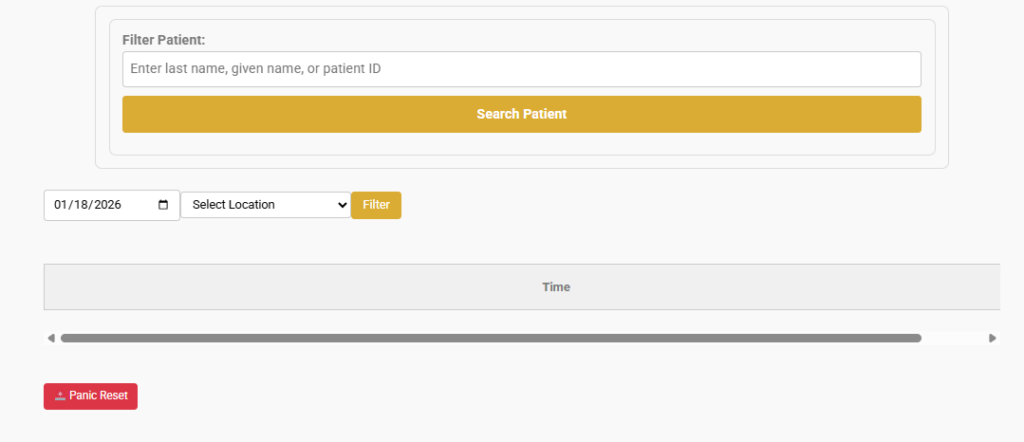
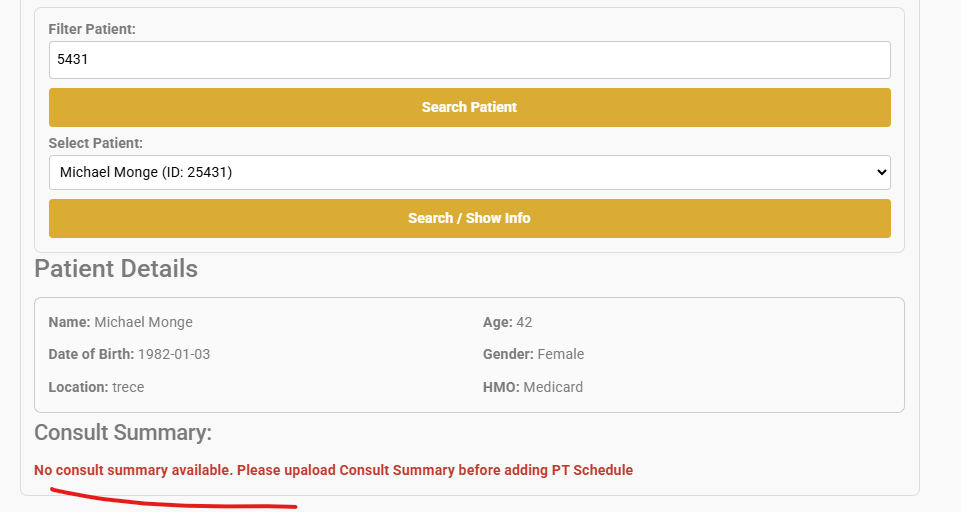
You can search for a patient for to see if they can be scheduled for a session or not, this will also display the patient’s basic information. Or, you can go ahead and select  date and location and click the Filter button to see available schedules/slots of Therapists. Example below.

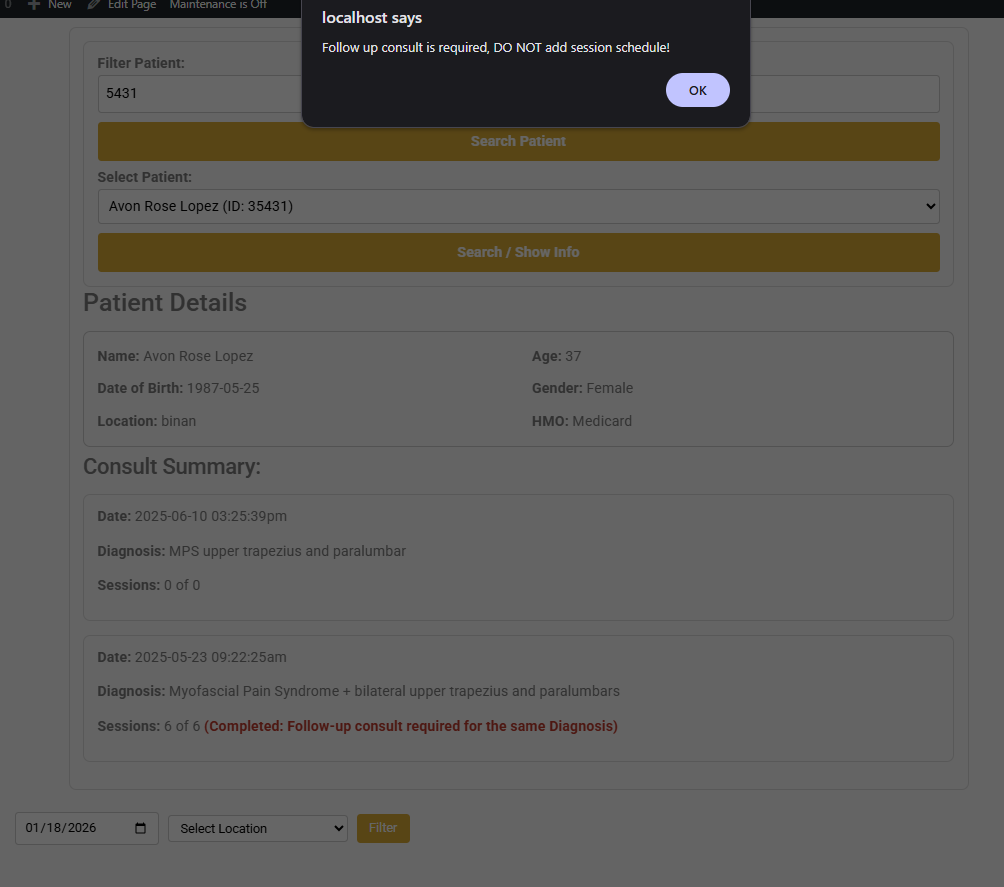
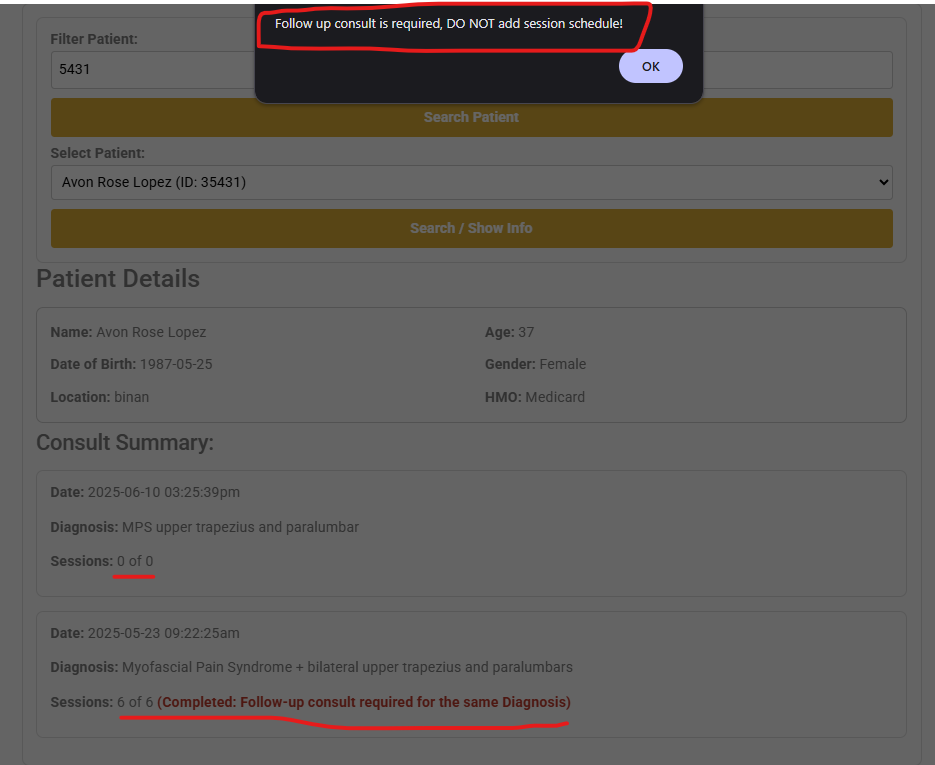
The page will display a message if there are no more available sessions for the selected patient. Please pay attentions to the alerts and information displayed on the page. From the above example, it tells you that there are more available sessions for the patient. You can tell why, based from the information displayed. In the case above, do not proceed with adding schedule and inform the patient or the admins that the patient needs follow-up consultation. It will not let you select any diagnosis if you try adding a schedule.

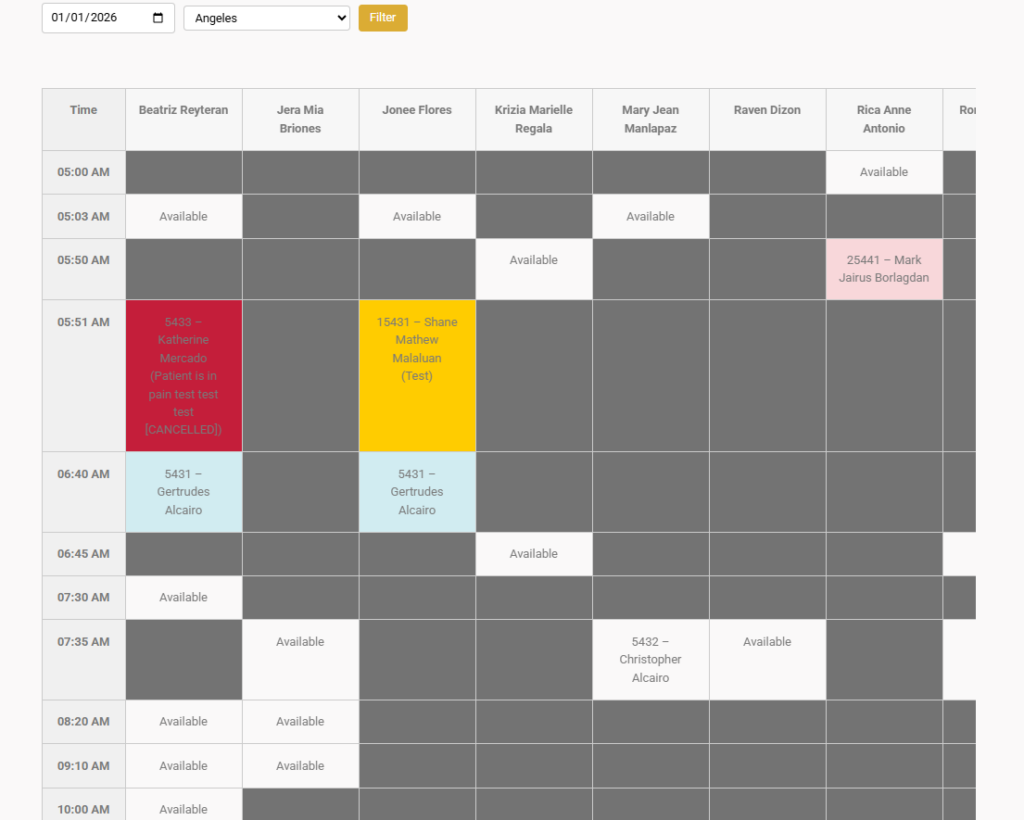
The screenshot above shows a table with the Therapists’ available and occupied slots based from your search filter. Clicking any non-greyed area will let you edit the slot. You can mark an existing schedule as cancelled, clear an existing slot or add schedule.

Empty Slot

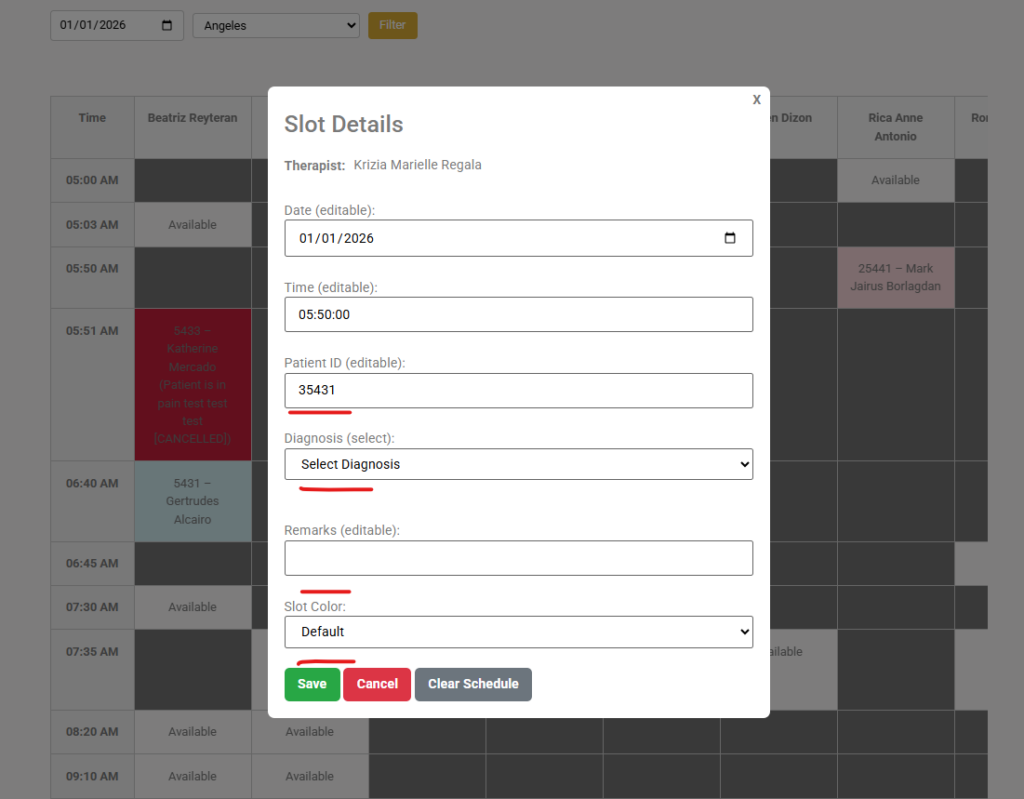
Clicking slot with the word Available will display the pop-up above, with Date, Time, Patient ID pre-filled. Patient ID is taken from your last patient search. One you are done, click Save to save the details scheduling patient for his here next session.

Occupied Slot

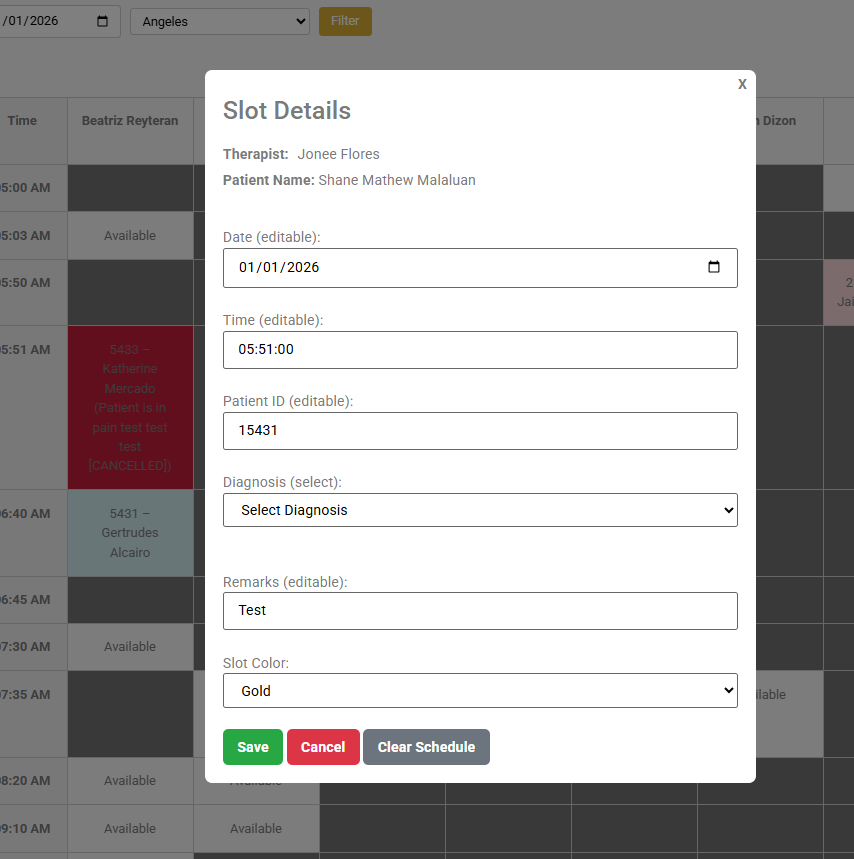
Clicking an occupied slot, will show the pop-up above with information pre-filled. Here you can either mark the schedule as cancelled, clear the schedule to schedule another patient or change any information that you can see in this small window. Click Save if you made any any changes.

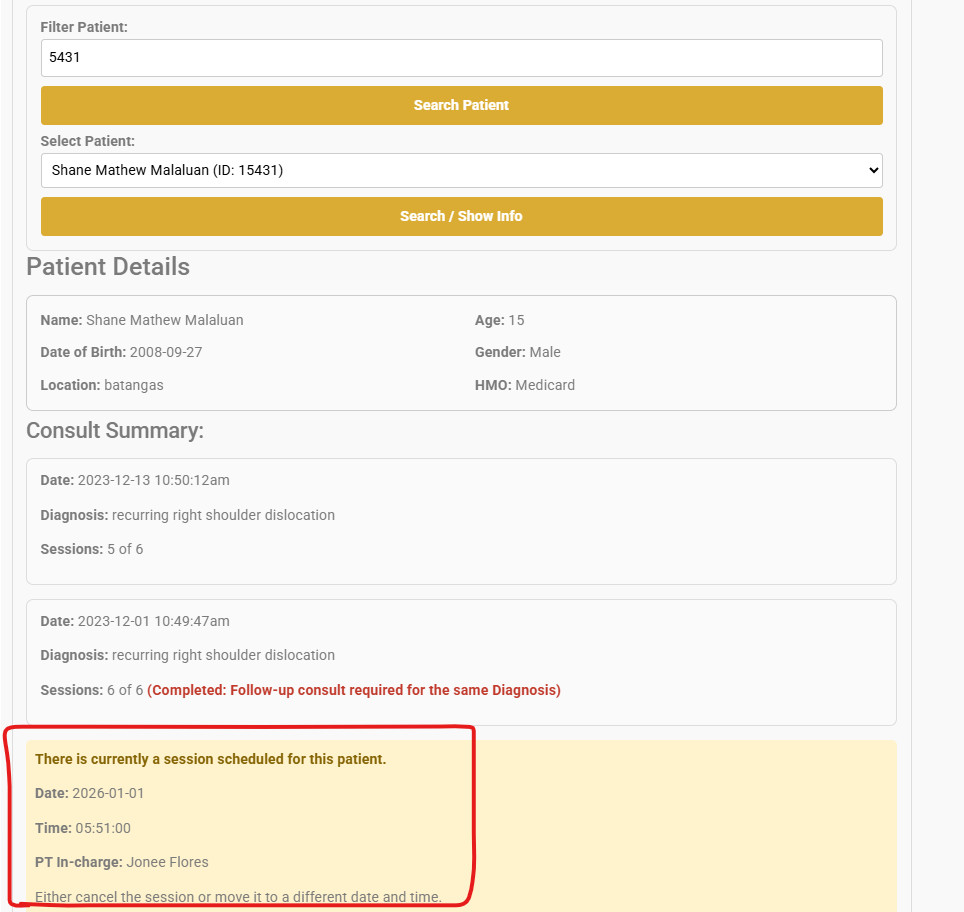
Now let’s go back a bit to patient search.

I’m pretty sure that the screenshots above explains clearly what is happening.

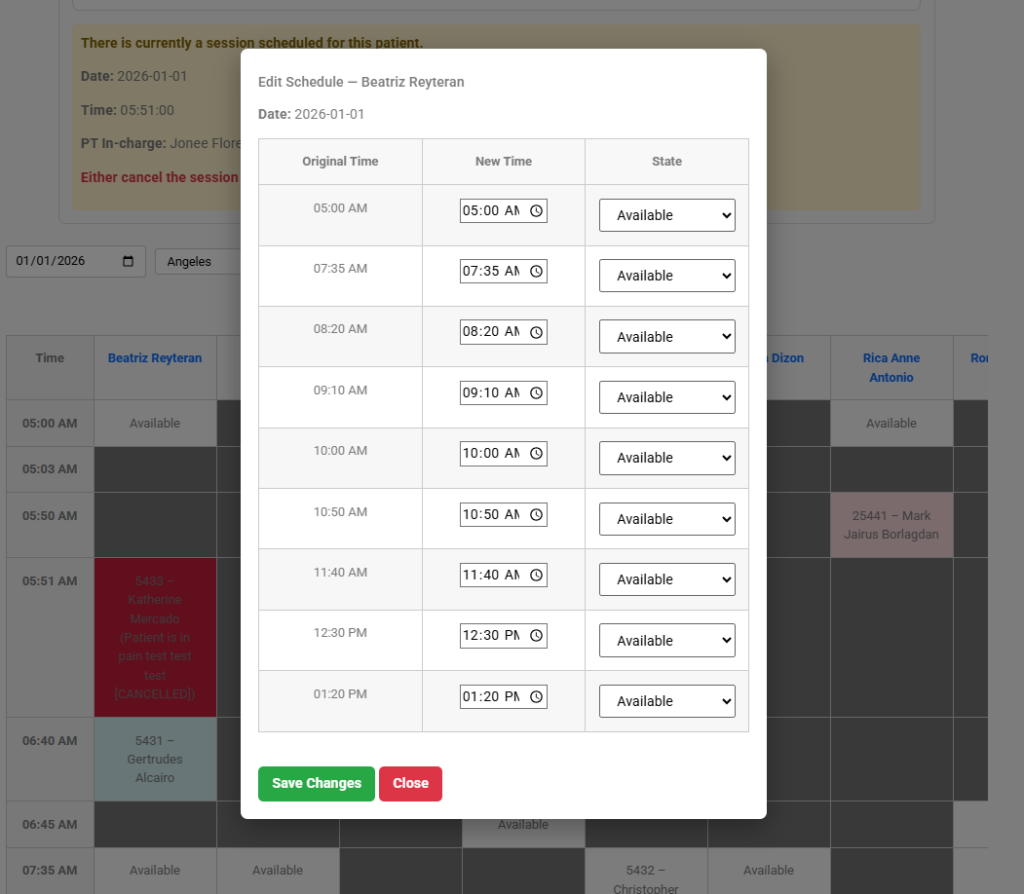
To edit the plotted Therapist’s schedule, simply click the of the Therapist on the table.

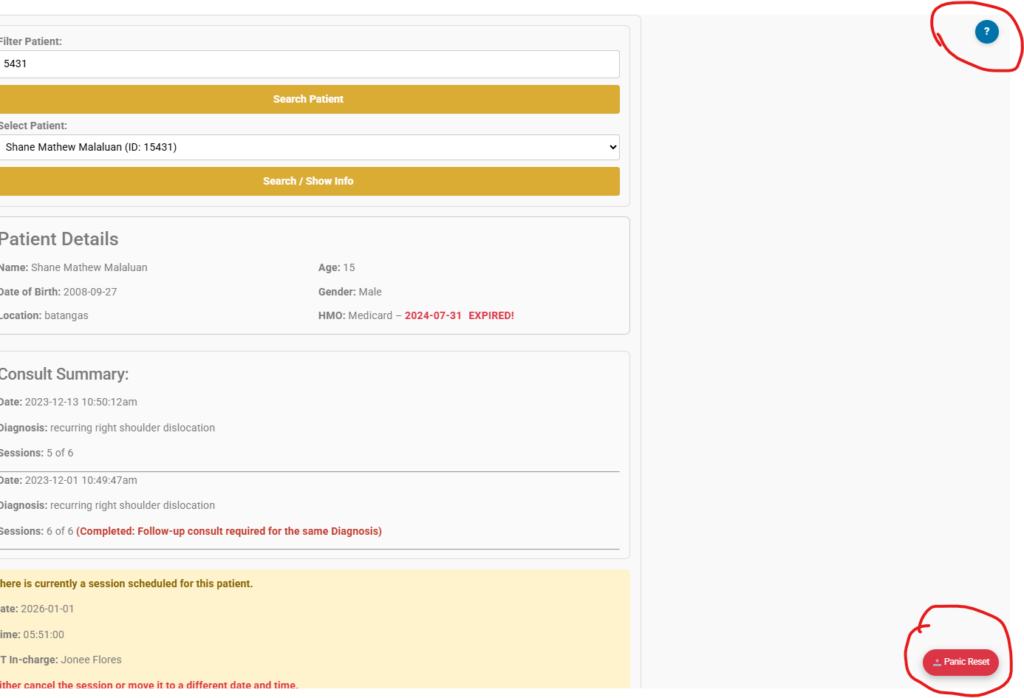
You will also find two(2) useful buttons on the page, the help and panic reset button. the HELP button will bring up this page and the Panic Reset button will reset the page if if hits a brick wall or stopped working as intended.

FaQ’s:


H
MO is showing as expired?
Update the HMO details or ask someone to do it if you don’t have the access.


HMO is still showing as expired even after updating the details?
– Refresh the page

Why is there no diagnosis in the drop-down?
Check the Consult Summary section, it should tell you why.

I need to change the session time, what do i do?
– Click the slot, change the time and click Save

I need to move the session to another date and/or timewhat do i do?
– If the session is past due, click the slot and click Cancel, this will mark the session as cancelled.
– If it is not past due and you need to make the slot Available again, click the slot and click Clear Schedule

– After doing either of the above, proceed on plotting a session schedule for the patient

I need to modify the Therapist’s plotted schedulewhat do i do?
– Click the Therapist’s name on the table, modify the plotted times and click Save Changes

The page stopped responding and search does not work, what do i do?
– Click the Panic Reset button

How do i go back to this page?
– Click the question mark(?) icon on the top of this page


Note: Layout may change without prior notice

I hope that covers everything! Just give any alerts or pop-ups a quick glance before hitting OK—they like to sneak in surprises. 😄Also, make sure to always pay attention to the patient details displayed on the page.

And if anything else comes up, send us a message anytime.

Need our care?

Register now to book an appointment!

Or email us at admin@hiphysioph.com

Or visit our Facebook pages