Manage Consult Schedule
This page is where you can create, modify, cancel and mark consultation as attended.
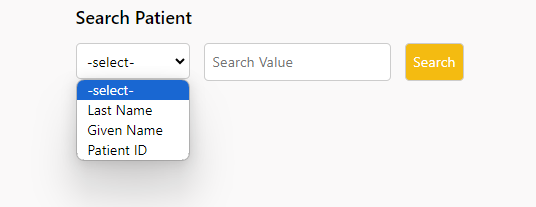
1. Select from either, Last Name, Given Name or Patient ID then enter the search value in the box and hit Search.
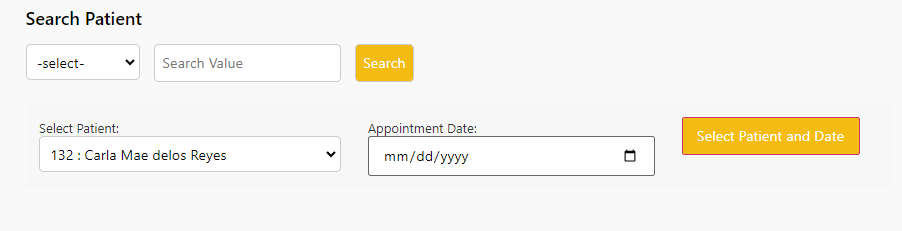
2. Select from the list of Patients, select a date and hit Select Patient and Date
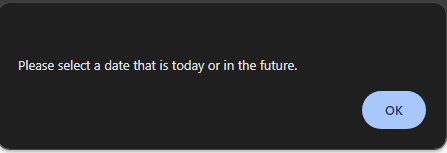
3. If you accidentally selected a past date, you’ll get the message below.
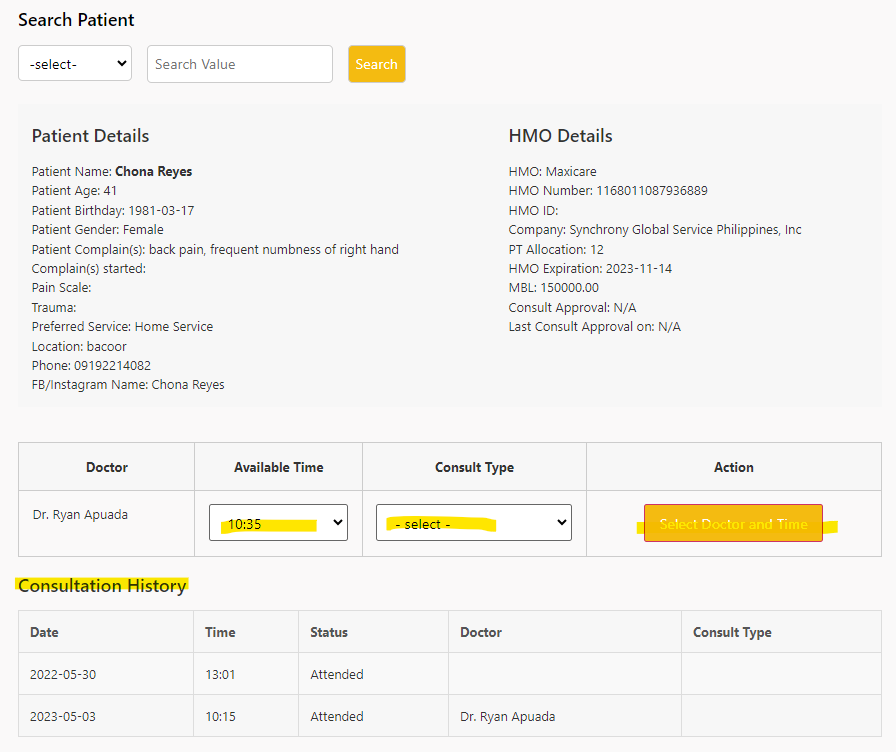
4. If the patient does not have an existing appointment, you’ll see something like the page below. As you can see there is only one doctor listed in the table since this is only for testing. You’ll find more doctors depending on the schedule that was added. The Available Time drop-down box will give you all available time for the selected date and doctor displayed. After selecting the time and consult type, click Select Doctor and Time button. At the bottom of the page you’ll find the Consultation History table.
You should get a confirmation saying that the Appointment has been successfully scheduled.
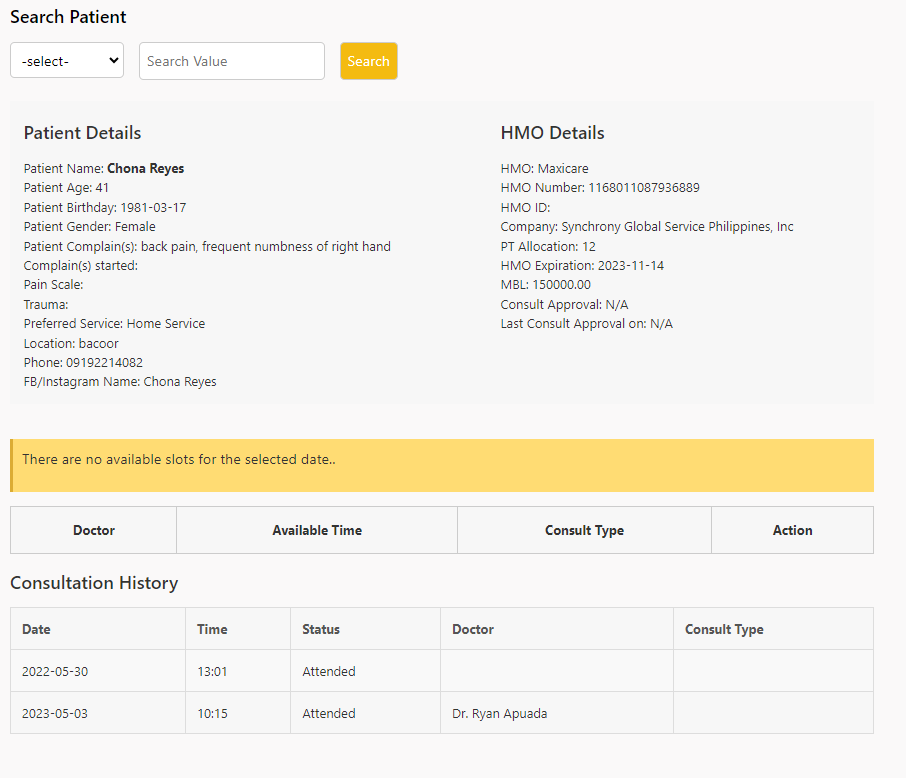
5. If you selected a date that does not have any slots available. You’ll get the message below.
6. Now, let’s go back to searching a Patient. After selecting a Patient, for example you selected July 29 and patient still has a pending appointment which is dated July 25, it will display information regarding the July 25 and will ignore the date that you selected and will tell you that there is still a pending appointment for that patient as shown below.
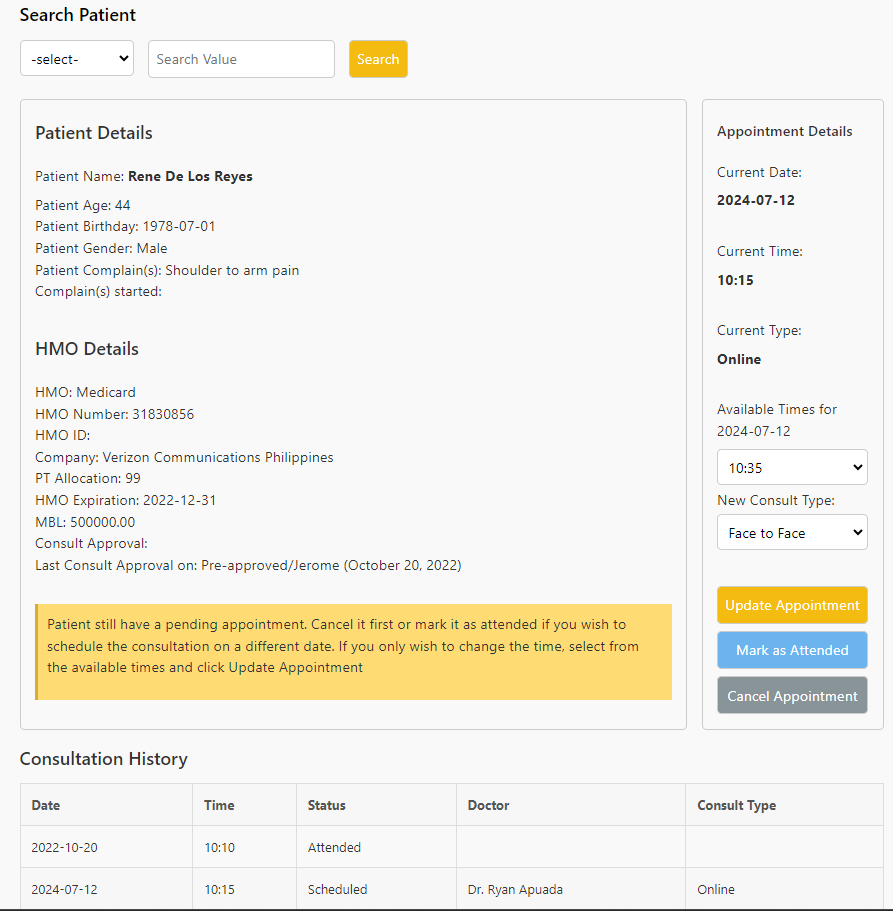
**Always pay attention to the messages displayed on each pages
You have the option to change the time of the appointment, mark the appointment as Attended or cancel it.
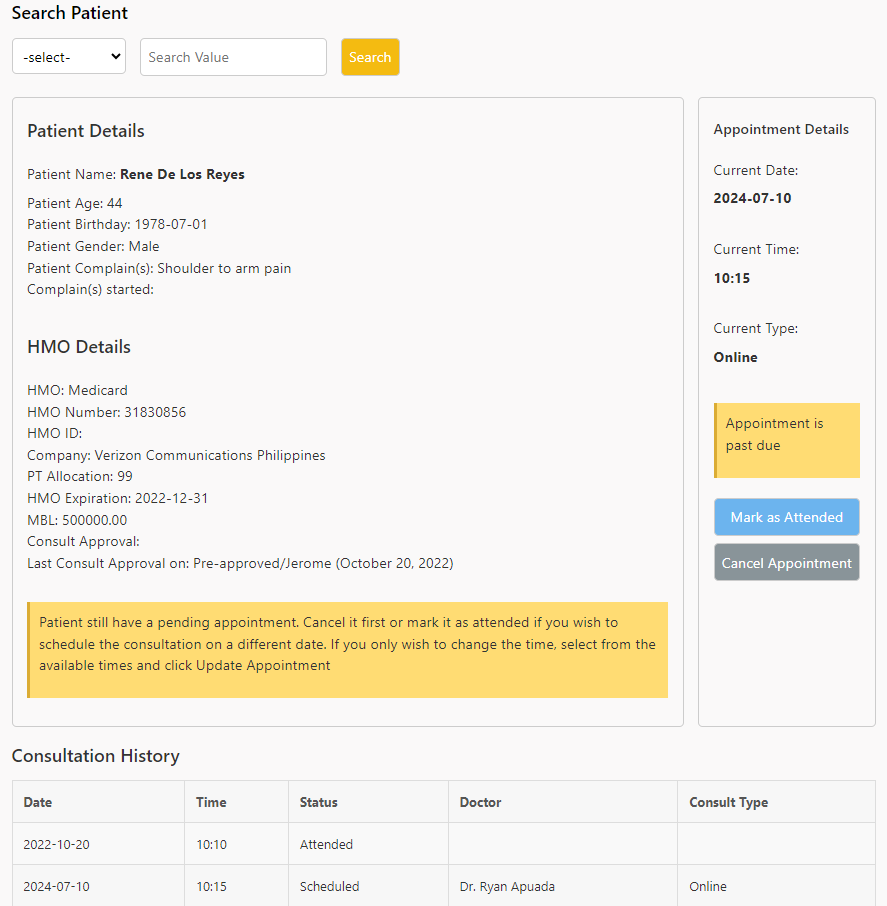
7. If for example the existing appointment is already past due, you’ll get the screen below. You’ll no longer have the option to change the time, and obviously you will not see an Update Appointment button anymore. Your only option it to either mark it as Attended or cancel it.
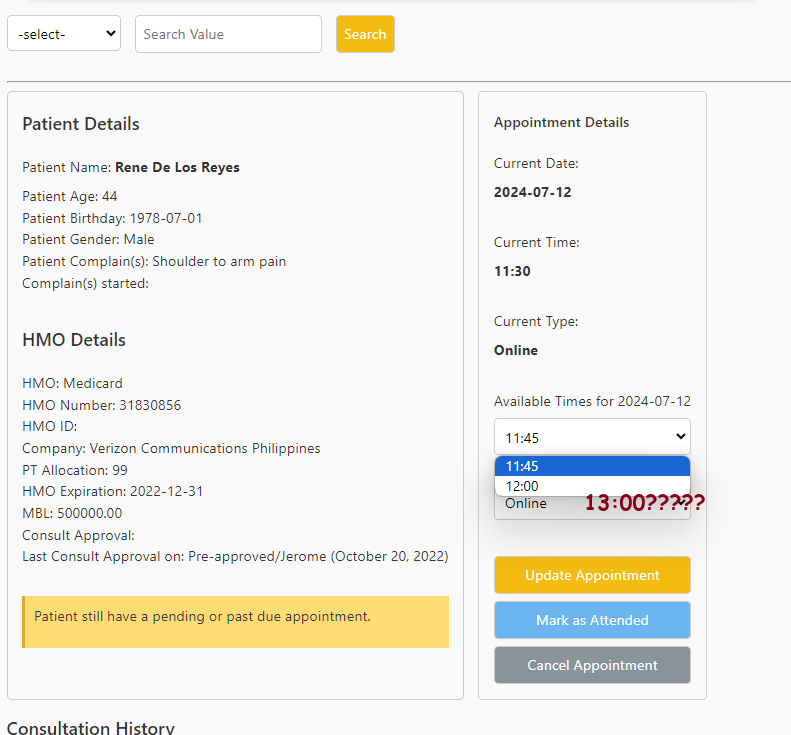
8. If for example you wanted to edit the appointment date and the time that the patient wants is not in the drop-down box, that only means that the doctor is not available for the preferred time. What you can do is cancel the existing appointment and create a new one selecting a different doctor.
9. If you wish to change the appointment time and you got a message saying ‘There are no more available slots for this day!’ if the Doctor’s schedule is fully booked. What you can do is cancel the appointment and create a new appointment selecting a different Doctor or a different day with the same Doctor.

I hope this covers everything but if you have any questions, just let me know.
You can go back to this page by clicking the (?) button on the Manage Consult Schedule page. The images may differ from the actual page as we continuously update pages.