Manage Consult Schedule
Features
- Assign patient to currently plotted schedule
- Register new patient and assign to currently plotted schedule
- Create new schedule for existing and new patient (singit sched)
- Mark schedule as Attended or Cancelled
- Change patient schedule
Please make sure to read what is displayed on Manage Consult Schedule page to avoid confusion.
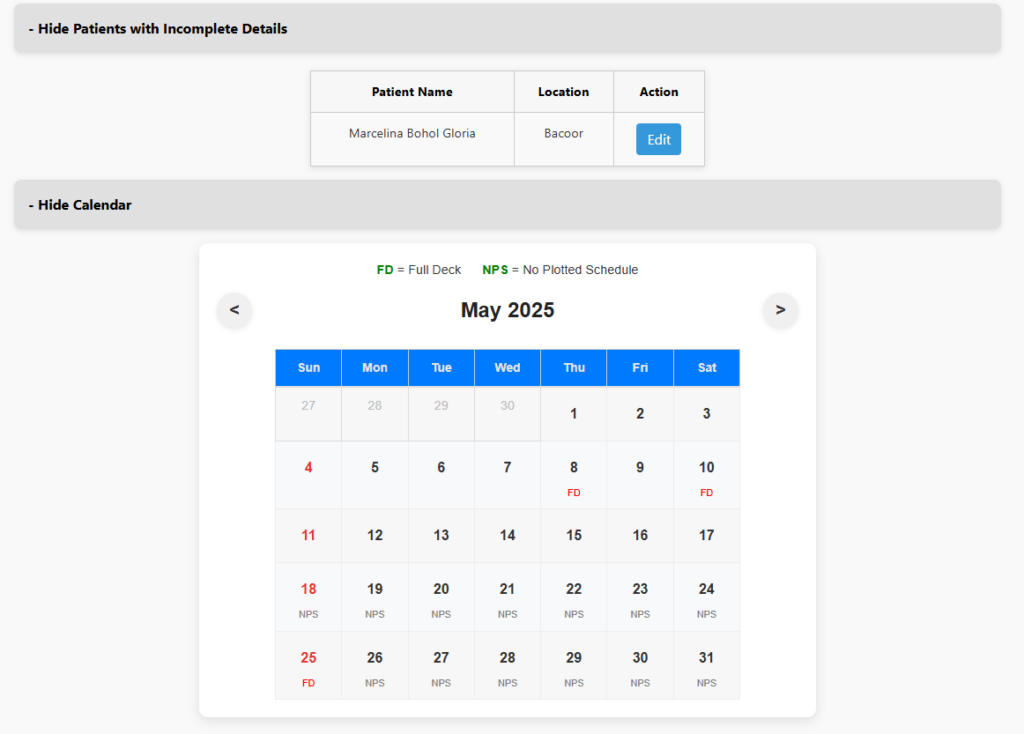
The first screen shows a list of patients with incomplete details. You can click the Edit button to complete their information. If a field is not applicable, you may enter N/A to remove the patient from the list. The details will be displayed on a separate page, and after clicking Submit, you will be redirected back to the Manage Consultation Schedule page.
Next is the Calendar. FD stands for Full Desk, but it does not mean you can no longer add a schedule. NPS means No Plotted Schedule. You can either go to the schedule plotting page or remain on the current page to enter a custom schedule after selecting an existing patient or adding a new one.
Clicking any day on the calendar will show the screen below
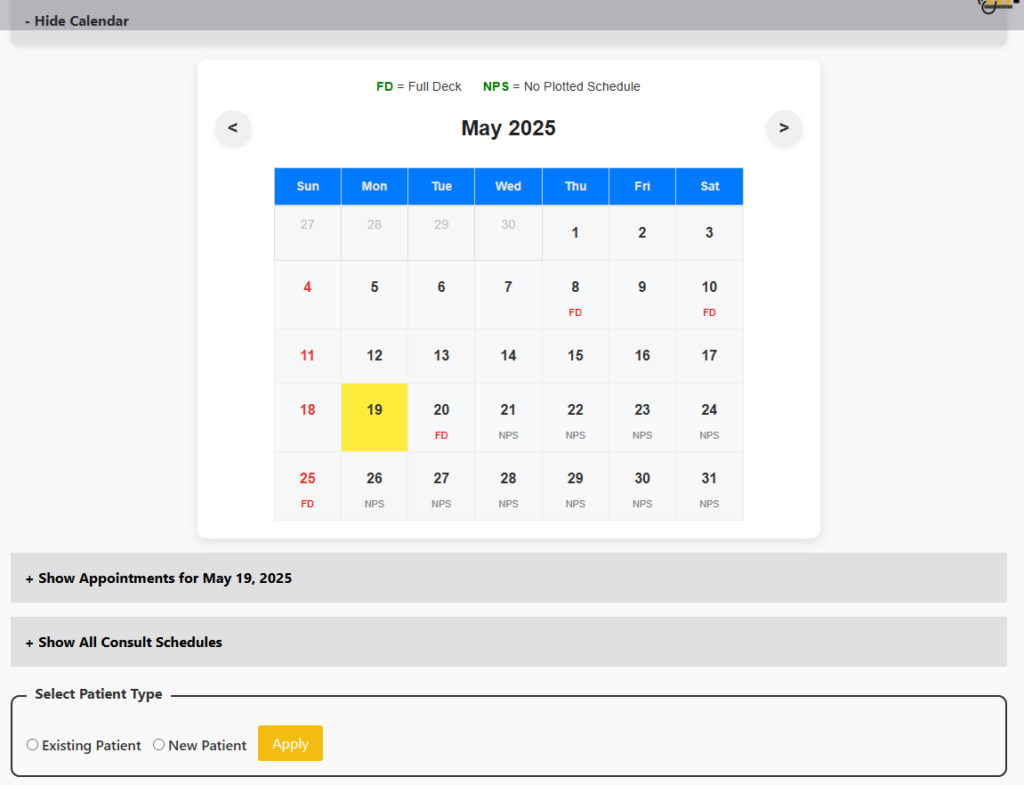
You can click on the bars to see appointments for that date and all consult schedules currently plotted.
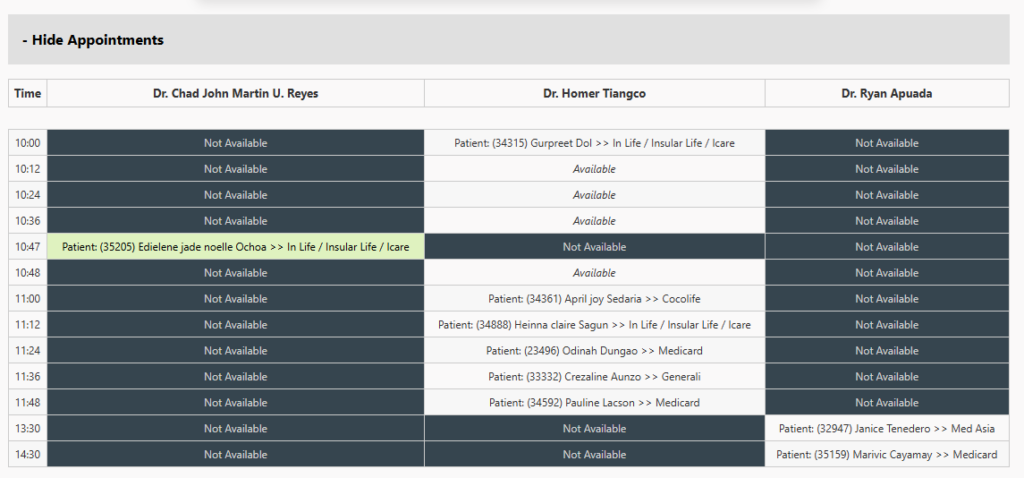
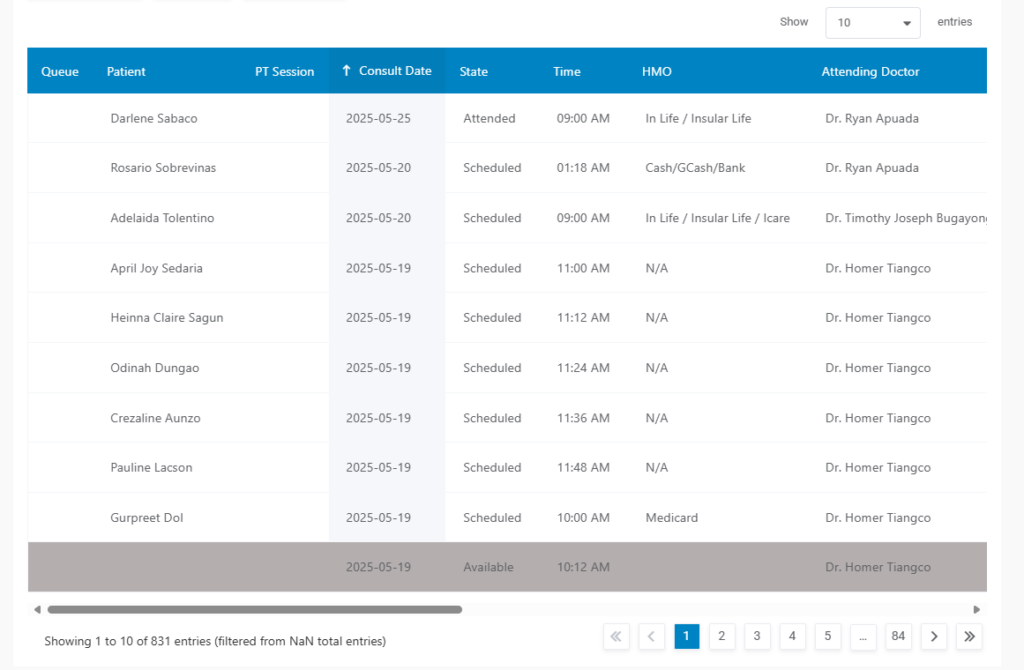
You can select between existing patient and new patient

Existing Patient: Use the fields below to search by Last Name, First Name, or Patient ID. After clicking Search, a dropdown will appear where you can select the patient you’re looking for.
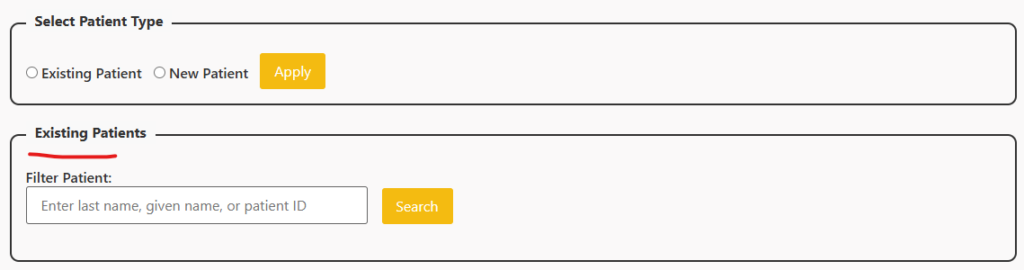
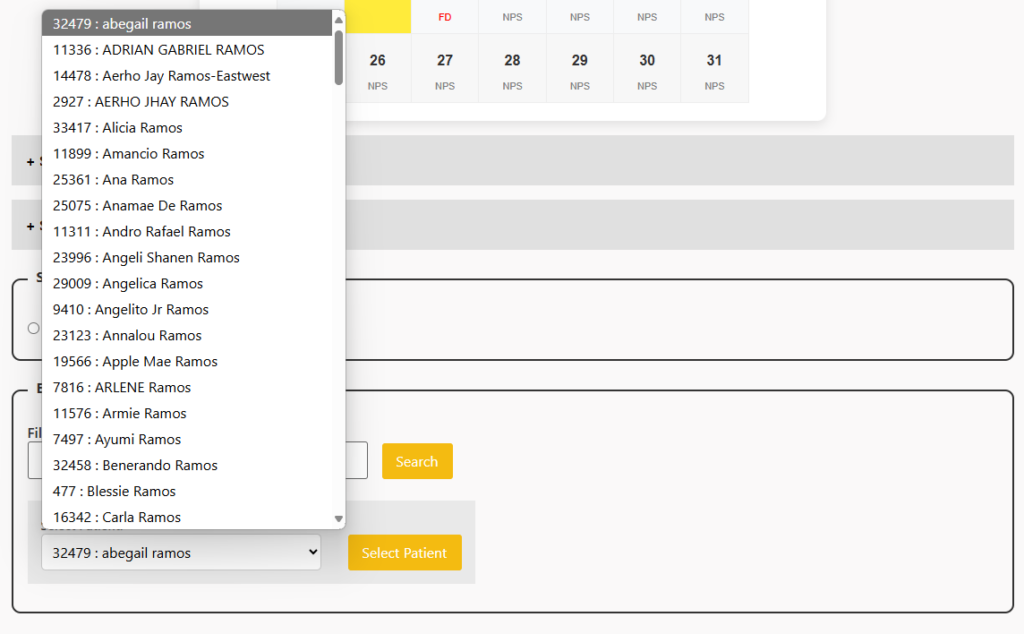
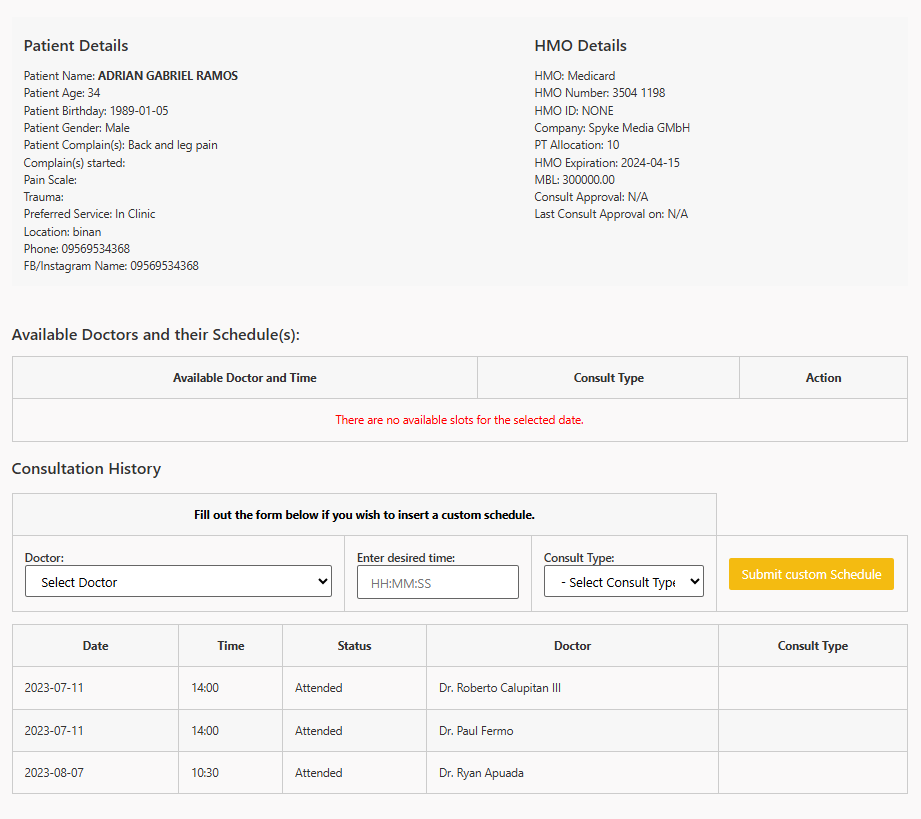
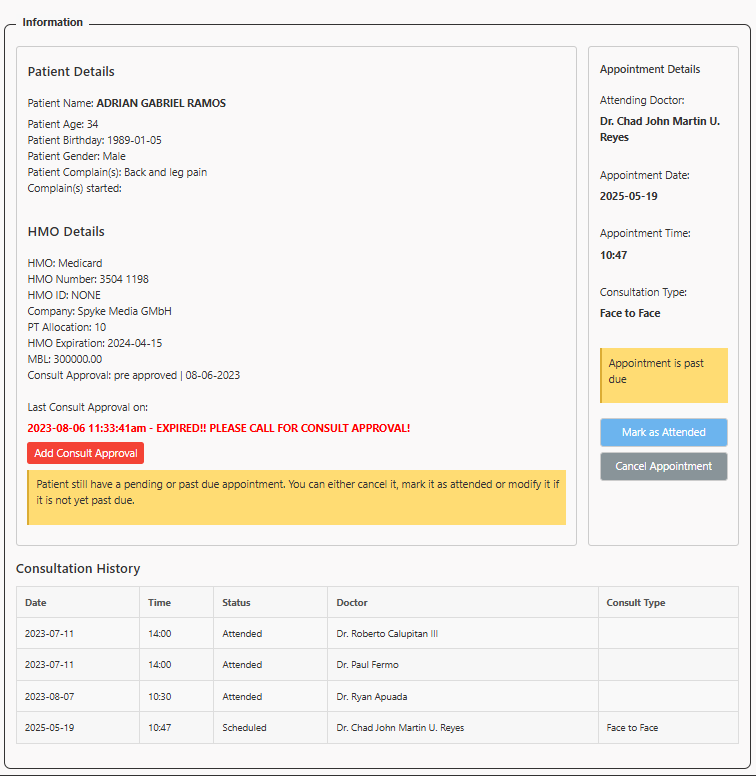
After selecting a patient, you will see the information below. The screenshot below shows that the patient does not have any scheduled consultation. While the second screenshot shows that the patient has a pending consultation schedule that you can either mark as attended or cancelled. You will also find option to reschedule the appointment if there are available slots or if it’s not past due yet. If you want to schedule the the patient but there are no more available slots, cancel the existing appointment and create a custom appointment time. On the first screenshot you will see the Submit custom schedule option since there are no more available slots.
You see the screen below if there is an available schedule where you can moved the appointment
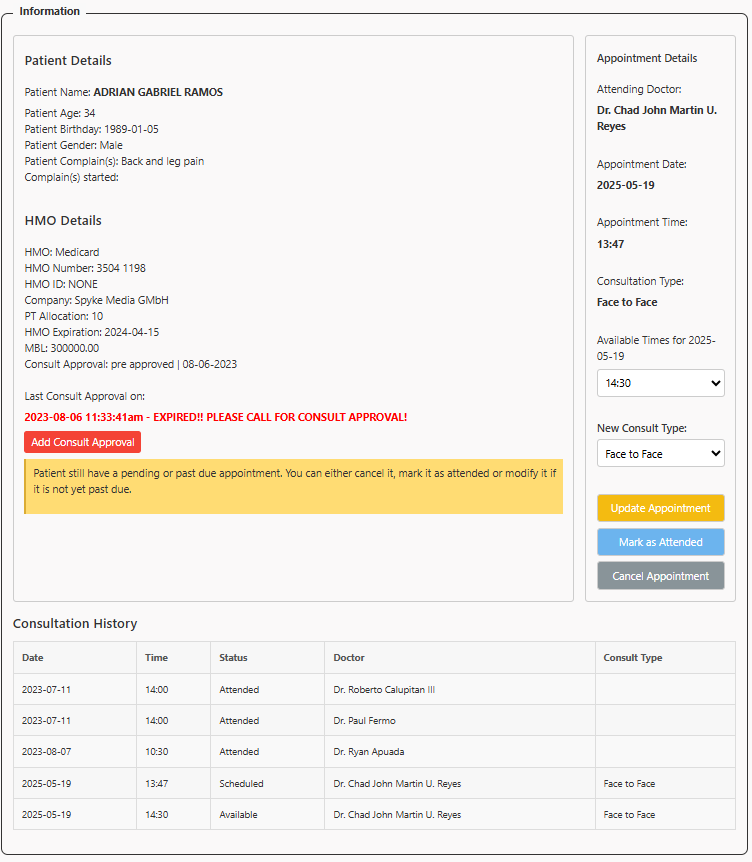
Note: If the appointment is past due, cancel it and schedule a new one.
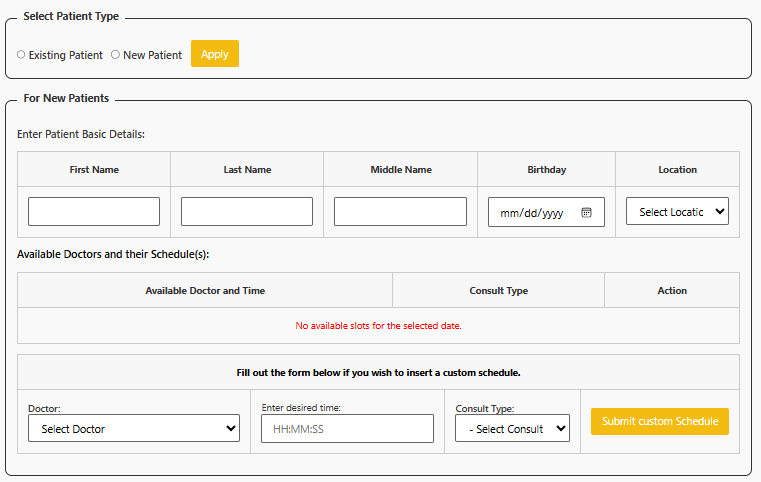
For New Patient. You will be ask to enter a few basic information which is going to be used for the registration. You will the screenshot below if there are no more available slots for the chosen date. Screenshot below shows you can create a custom (pasingit) schedule.
While below screenshot shows that there is still an available slot.
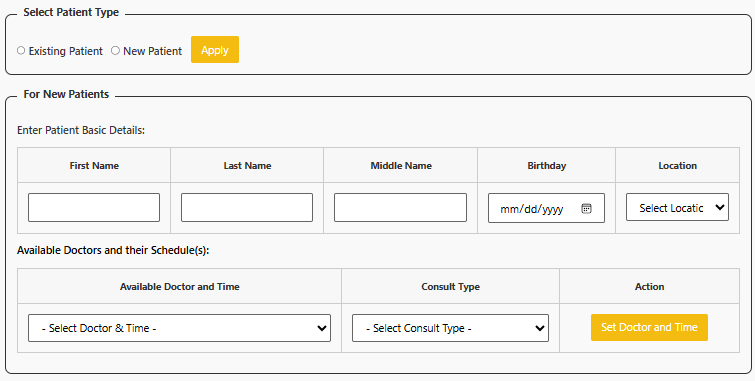
Note: Custom schedule is only available if there are no more available slots for the chosen date.