Consent Form
Important Note: Please make sure to read everything and let me know if you have any questions or suggestions. Thank you.
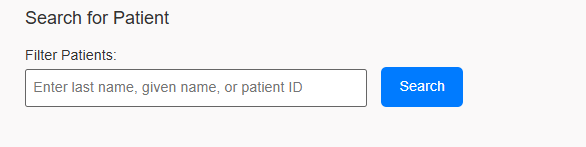
Same with other pages, on page load you will see the screenshot below.
But, if you were taken to this page by a button from another page, you may see the screen below where a patient has already been preselected, where the Patient Name and ID is displayed as well as the Procedures/Modalities. This is the same screen that you will see after searching and selecting a patient.
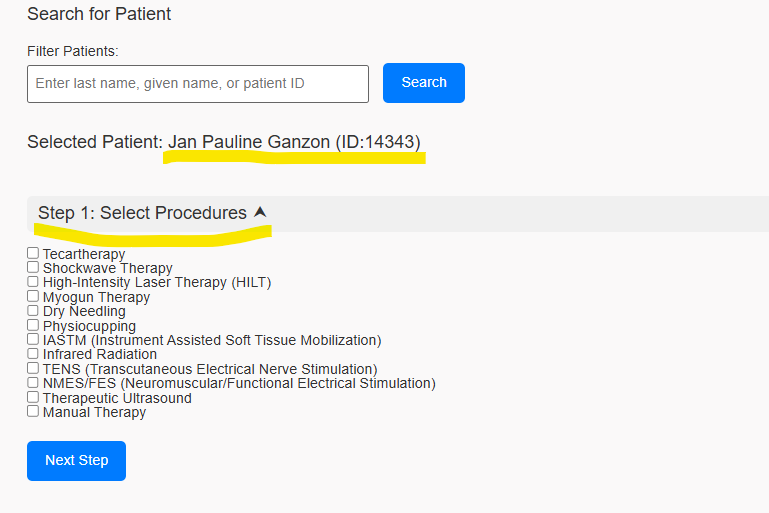
Step 1. Select the procedures that the patient will undergo, click Next Step to proceed. If, for example the patient selected Dry Needling and Physiocupping, Step 2 will display contraindications for each selected procedure/modalities respectively.
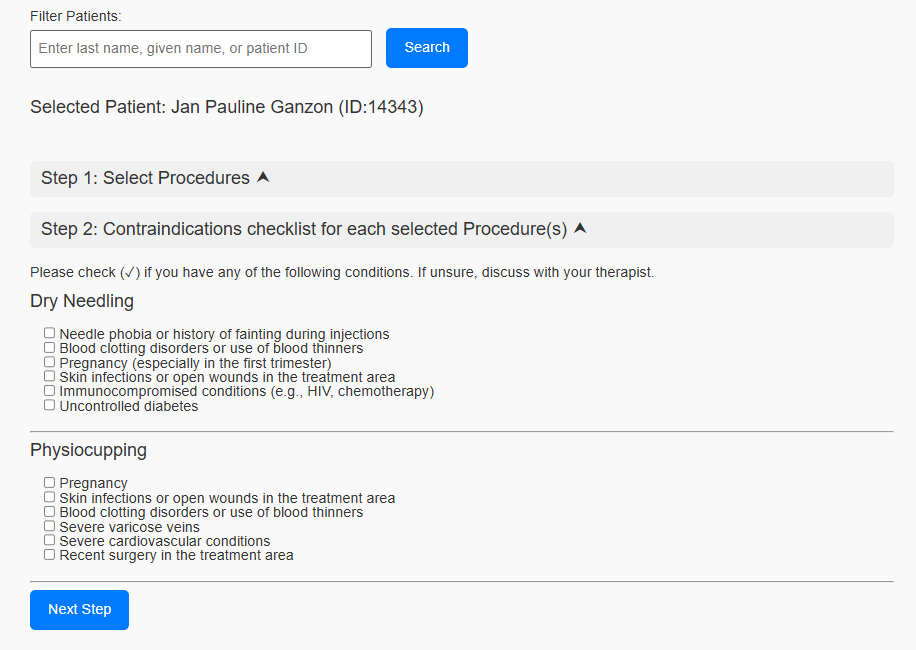
After selecting contraindications, click Next Step to proceed to Step 3.
Note: If you wish to add another procedure, you can do so by expanding Step 1 and selecting another procedure and do not forget to click Next Step on Step 1 to display the contraindications for the newly added procedure. You can another procedure as long as you are not done yet with Step 3
You will see the screen screen below after clicking Next Step on Step 2.
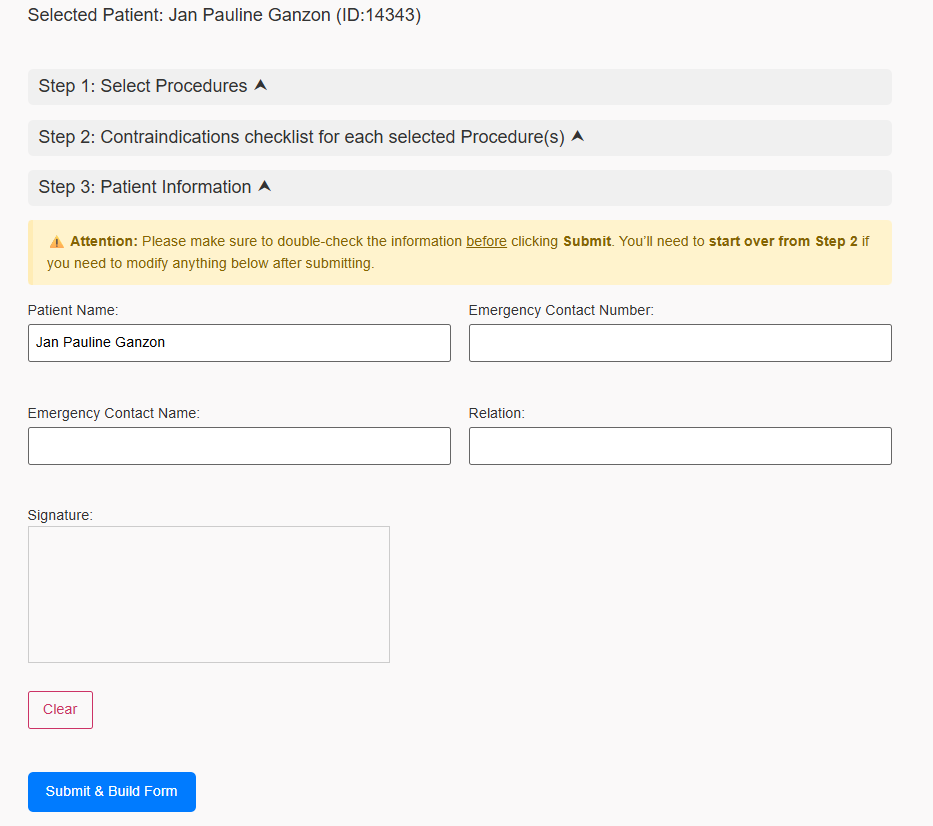
Fill out the information, sign on the signature pad provided and click Submit & Build Form. Make sure to check and input the correct Patient Name, some patient names were saved with the HMO provider attached to it. You can still add a procedure if you want to before clicking Submit & Build Form. After clicking Submit & Build Form, you will see that screen below.
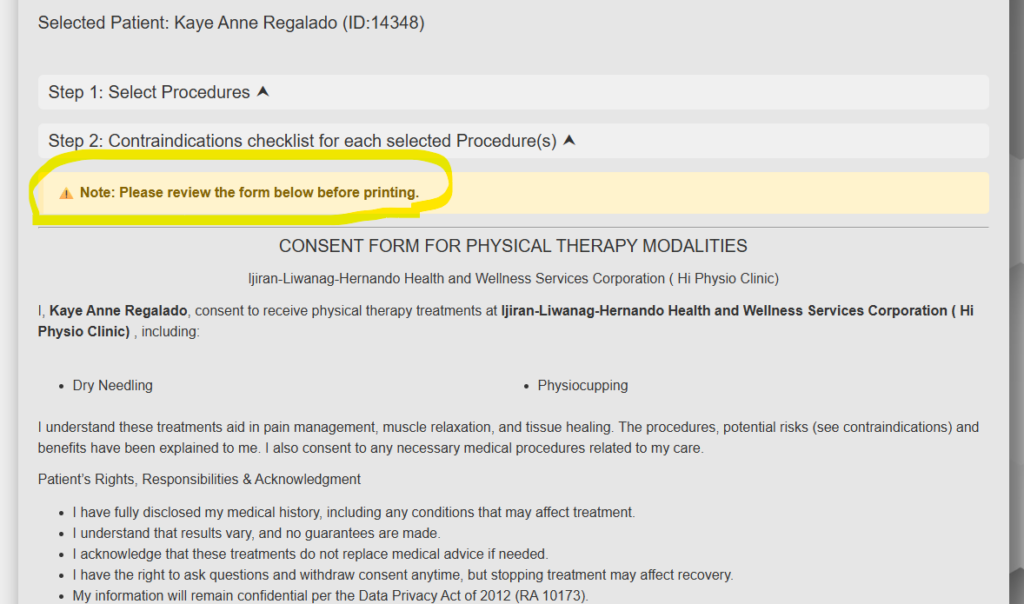
Be sure to check the form before printing to save ink 😎
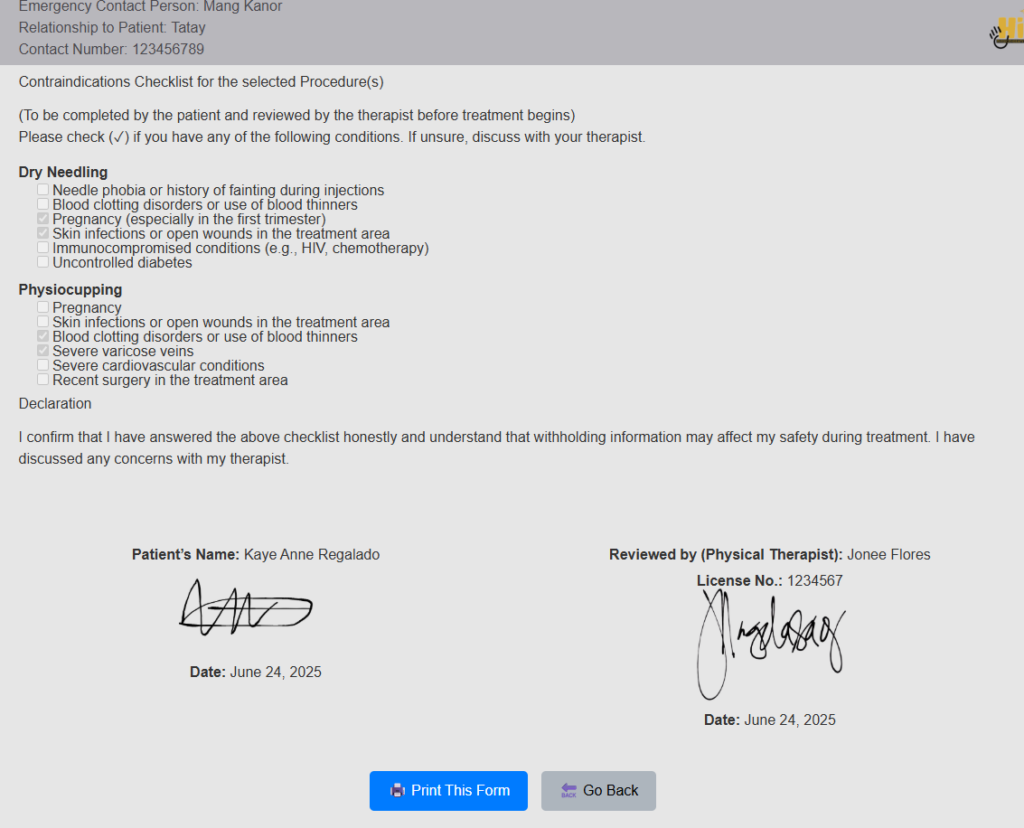
If all is good with the form, you can click Print This Form. If you need to Edit anything, click Go Back.
Editing an already saved form may require you to go through all the steps again. So make sure to review everything before clicking Submit & Build Form on Step 3. You will get the screen below if you clicked Go Back. This is the same screen that you will get if you search for a patient that has an active consent form.
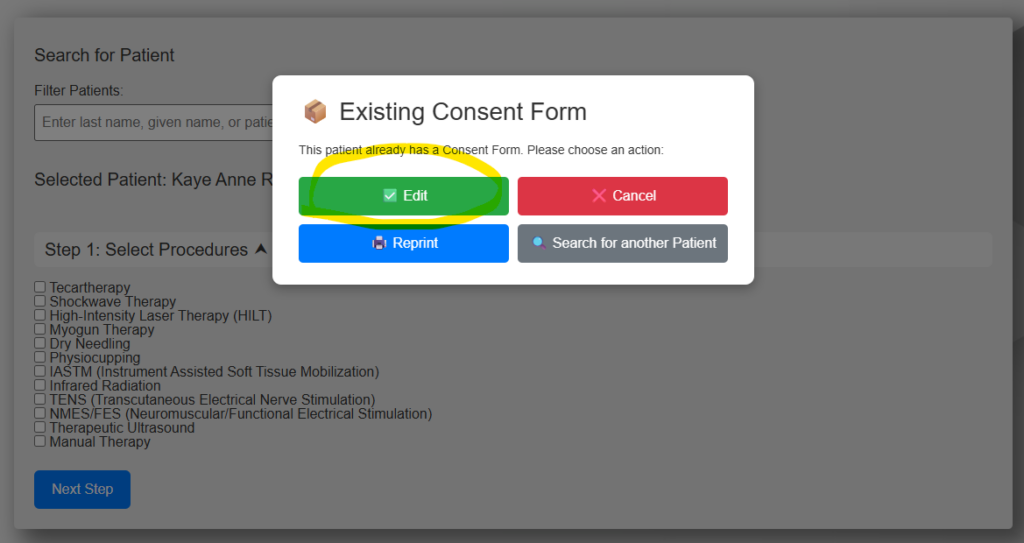
The patient is still the same. Click Edit if you need to edit the Form, Cancel if you wish to void the newly created form, Reprint if you wish to Print that form or Search for another Patient if patient already changed her mind😄. If, for example you clicked Edit. You’ll see the screen below where your previously selected options are already checked.
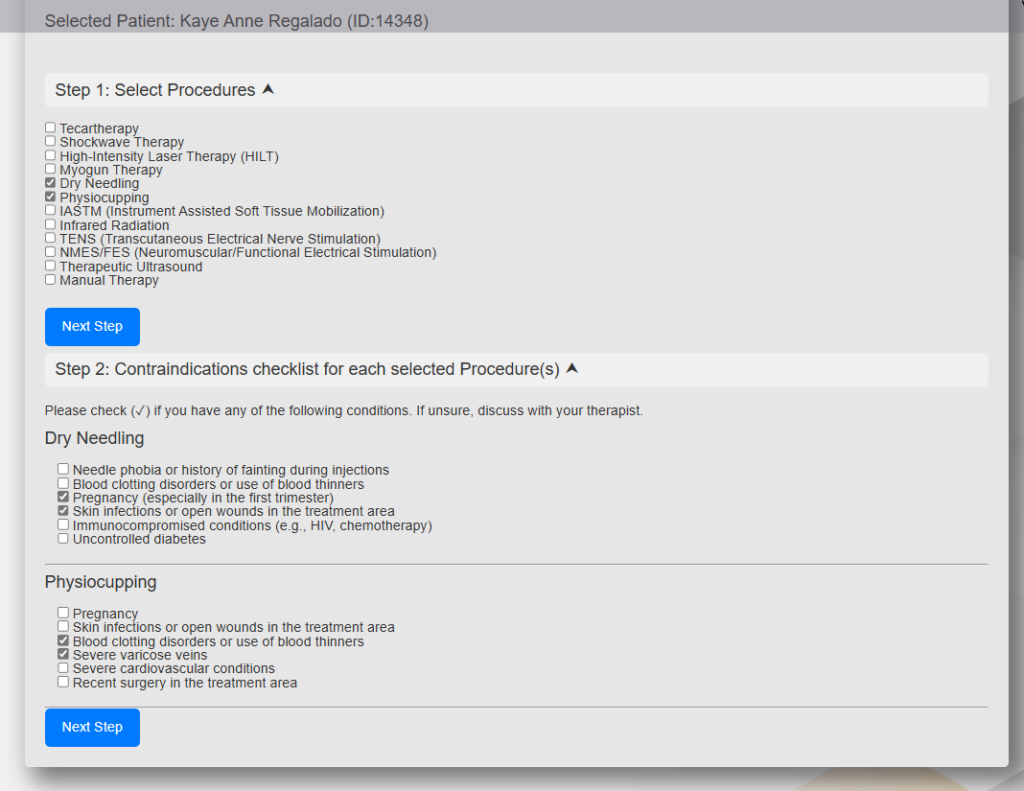
If you wish to add a Procedure, add it on Step 1 and click Next Step. If you just want to add contraindications, start on Step 2 and click Next Step. After clicking Next Step on Step 2, you will again see Step 3, proceed with the rest of the steps.
Important Note: If the patient previously signed a consent form, like for example a week or month ago and you get the screen below, after searching for that patient.
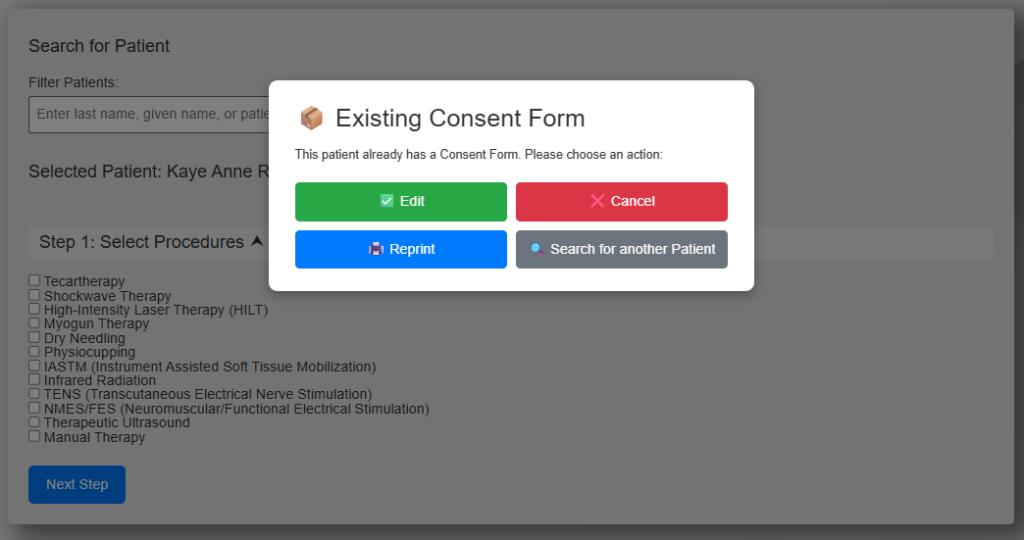
I would suggest that you click Cancel, to keep historical data, This will retain previous records(consent forms signed) of the patient. You will be able to add a new consent form for the patient after clicking Cancel. But if you just want to add something to the consent form for the current or upcoming session, you can just click Edit.
Got a question? Send a message to me directly or post a message on the Group Chat. Have a good day!